Getting started
Newport connects your macOS or Windows computer to Linux servers over SSH. You can use a shell, open remote web apps locally, transfer files, and manage projects from the same window.
Before you start
You need:
- A supported computer: macOS 14 or later on Apple silicon, or Windows on x64 or ARM64. Windows support is experimental; a minimum supported Windows version has not yet been established.
- A Linux server reachable directly over SSH, with its host address, username, and SSH port (usually
22). - An SSH key available through your local SSH agent or key file, or the account’s password.
Needle, Newport’s helper, supports Linux servers with x86_64 or ARM64 processors. Newport offers to install it after connecting. Requirements vary by feature:
| Feature | Requirements |
|---|---|
| Terminal and manual forwards | SSH access |
| Files | SFTP enabled for your SSH account |
| Overview, port discovery, Projects and Git | Needle; Git operations also need Git |
| Services | Needle and systemd, Linux’s service manager |
| Containers | Needle and Docker; Compose actions also need Docker Compose |
| Remote apps | macOS desktop on Apple silicon; Needle, graphical dependencies checked during setup, and trial or Pro access |
Servers reached through a jump host (ProxyJump) or a helper program (ProxyCommand) work too. Newport imports both settings from your ~/.ssh/config.
Install Newport
Download the package for your computer from newport.app. On macOS, extract the ZIP and move Newport to Applications. On Windows, run the installer that matches your processor.
See Updates and installation for download links and platform details.
Add your first server
If you already have hosts in ~/.ssh/config, the welcome screen offers Import from your SSH config. Select the hosts you want and choose Import. Hosts with unsupported connection settings cannot be selected.
To enter a server yourself:
- Choose Add server or Add server manually. Later, open the server-name picker and choose Add server…, or use Server → Add server….
- Enter the SSH host, SSH port, and Username. Give the connection an optional name you will recognize.
- Under Connect through, keep Direct, or choose Jump host and pick one of your servers to sign in through, or Proxy command and enter the command, as in ssh’s
ProxyCommand. In the command,%his the host,%pthe port and%rthe username. - Choose SSH key / agent or Password under Authentication.
- For key authentication, select a key from the SSH key menu, or choose Enter a key-file path… and provide the path to a private key on your computer, such as
~/.ssh/id_ed25519. A.pubfile is the public half of a key and cannot authenticate by itself. For a protected key, follow Prepare your SSH key below, then choose Refresh agent keys. - Choose Save server.
Newport checks the connection. If it fails, use Edit connection to correct the details or Try again after resolving a network issue. Host keys are trusted on first use; a changed or revoked key stops the connection. See SSH trust.
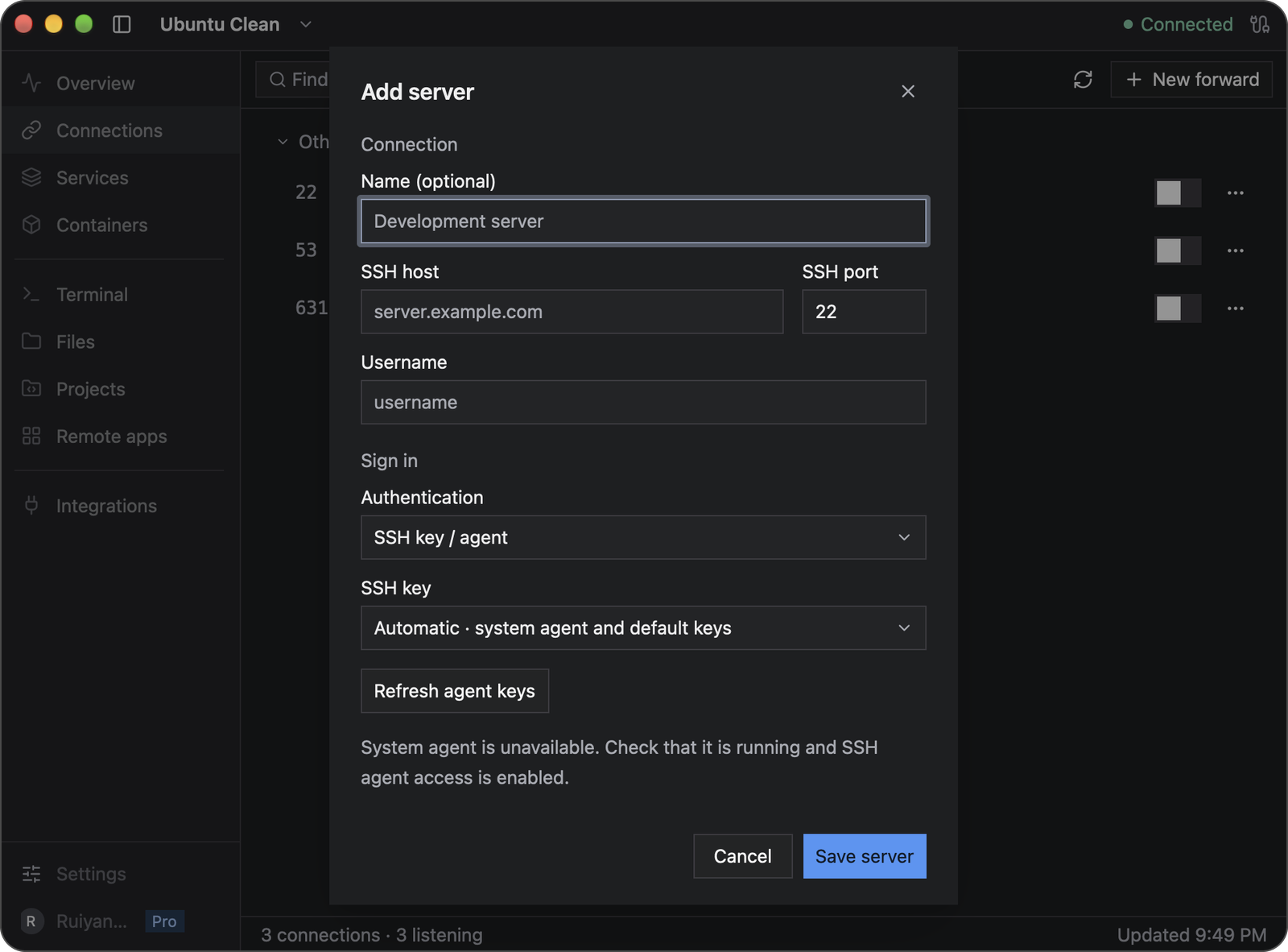
The example shows the agent-unavailable message. If you see it too, start or unlock your agent and follow the steps below; the fields above it are where you enter your own server details.
Prepare your SSH key
An SSH agent is a program on your computer that uses your keys for authentication. A passphrase-protected key must be loaded into an agent before Newport can use it. The matching public key must already be authorized for your account on the server; ask the server administrator if you do not have access yet.
For the macOS system agent, open Apple’s Terminal app and run the following, replacing the path if your key has another name:
ssh-add ~/.ssh/id_ed25519
ssh-add -l
Enter the key’s passphrase when asked. The second command should list its fingerprint. In Newport, choose Refresh agent keys, then open SSH key and select the matching System agent key. Automatic · system agent and default keys is also available when you do not need to pin a specific key.
On Windows with the OpenSSH agent, first make sure the OpenSSH Authentication Agent service is running. If it is disabled, an administrator can enable it in PowerShell:
Get-Service ssh-agent | Set-Service -StartupType Automatic
Start-Service ssh-agent
Then, in PowerShell as your usual Windows user, load and list the key:
ssh-add "$env:USERPROFILE\.ssh\id_ed25519"
ssh-add -l
Choose Refresh agent keys in Newport and select the matching key from SSH key. If the commands are unavailable, follow Microsoft’s OpenSSH key-management guide.
If your key lives in 1Password, follow its SSH agent setup, unlock 1Password, and approve its authentication request. On macOS, choose the key labeled 1Password from Newport’s SSH key menu. On Windows, 1Password supplies keys through the same OpenSSH agent connection; choose the matching listed key after refreshing. Follow 1Password’s Windows setup instead of starting a competing OpenSSH agent.
Set up the helper
When Newport asks Install the helper?, choose Allow to install Needle over SSH. You can choose Skip and install it later from Integrations. Plain SSH terminals, manual forwards, and SFTP browsing do not require the helper.
The size shown is the transfer size for your server. Newport sends a compressed copy when the server has gzip, then unpacks and verifies it before installation. Otherwise, it sends the uncompressed binary and shows that transfer size.
Needle installs under your remote account, with its command at ~/.local/bin/newport-agent. Sharing setup adds Newport-managed shell configuration so new shells can find the integration commands. Integrations lets you update or uninstall it later.
Choose whether to open server links in your browser and share your clipboard, then choose Save and finish. Both permissions start off and can be changed independently in Integrations. Enable clipboard sharing only for a trusted server.
Find your way around
Use the server name at the top left to switch servers. The connection status at the top right belongs to that server. The left sidebar opens its workspaces; Settings and your account are at the bottom. If you see only icons, use the sidebar control beside the server name to show labels.

The arrow beside the server name opens the server picker. The small sidebar button to its left changes the navigation display.
To confirm your first connection, open Terminal and run:
hostnameThe output is the server’s hostname. This command runs on the Linux server, not on your Mac or Windows computer.
Choose what to do next
| Page | Start here |
|---|---|
| Overview | Inspect server resource usage and history |
| Connections | Forward a discovered port or create a manual forward |
| Terminal | Run a command in a remote shell |
| Files | Browse, preview, upload, or download a file |
| Projects | Add a remote repository, edit files, and review Git changes |
| Services | Inspect systemd services and logs |
| Containers | Inspect Docker containers and Compose projects |
| Integrations | Manage Needle and clipboard/browser permissions |
| Remote apps, on macOS | Set up Linux graphical applications; requires a trial or Pro access |
Select a different server to switch workspaces. Switching pages does not by itself stop background tunnels or transfers.
Finish a session
Closing the Newport window leaves background connections running. Reopen it from the menu bar or system tray. Choose Quit Newport to disconnect and exit.
Save editor and remote-app work and finish transfers before quitting or updating. If a remote terminal command needs to survive disconnection, use tmux or another session manager on the server.
For help connecting, see Troubleshooting.