Newport user guide
Newport brings your Linux servers into one workspace on macOS or Windows. Connect over SSH to use terminals, forward ports, browse files, edit projects, and manage services and containers.
Start with Getting started to install Newport and connect your first server.
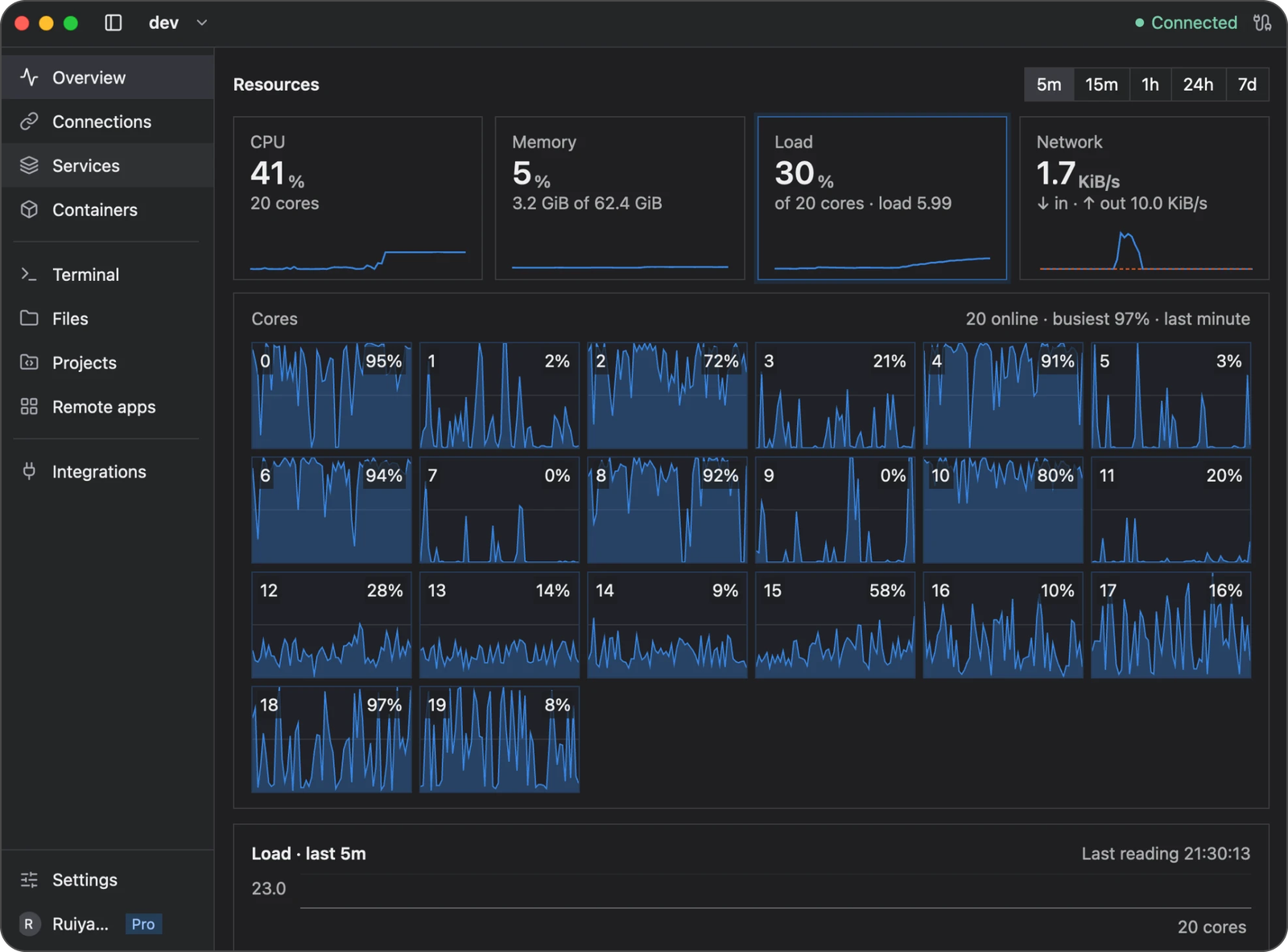
The screenshots in this guide show Newport on macOS. Windows uses the same workspace names; keyboard shortcuts are listed separately where they differ. Example server names and values will differ from your setup.
Work with your server
| I want to… | Guide |
|---|---|
| Open a server’s web app on my computer | Connections and port forwarding |
| Run commands or keep a long-running shell session | Terminals |
| Browse, preview, upload, or download files | Remote files |
| Edit code, review changes, and use Git | Projects and Git |
| Get completion, diagnostics, and refactoring tools | Language tools |
| See resource usage and history | Server monitoring |
| Inspect systemd services and their logs | Services |
| Manage Docker containers and Compose projects | Containers and Compose |
| Share my clipboard or open remote links locally | Clipboard and browser sharing |
| Run Linux graphical applications | Remote apps |
Manage Newport
- Updates and installation: check your version, update, and resolve installation problems.
- Storage and recovery: understand saved data, clear history, and preserve backups.
- Security and privacy: SSH trust, permissions, clipboard access, and known limitations.
- Troubleshooting: find a fix or report a problem.
- Roadmap: planned improvements and feature requests.
Choose a server before opening a workspace page. Connection settings and sharing permissions belong to that server. Closing Newport’s window keeps background connections running; quitting the app disconnects them.